
Your first 7U777 deposit with bKash, Nagad or Rocket: learn it hand in hand
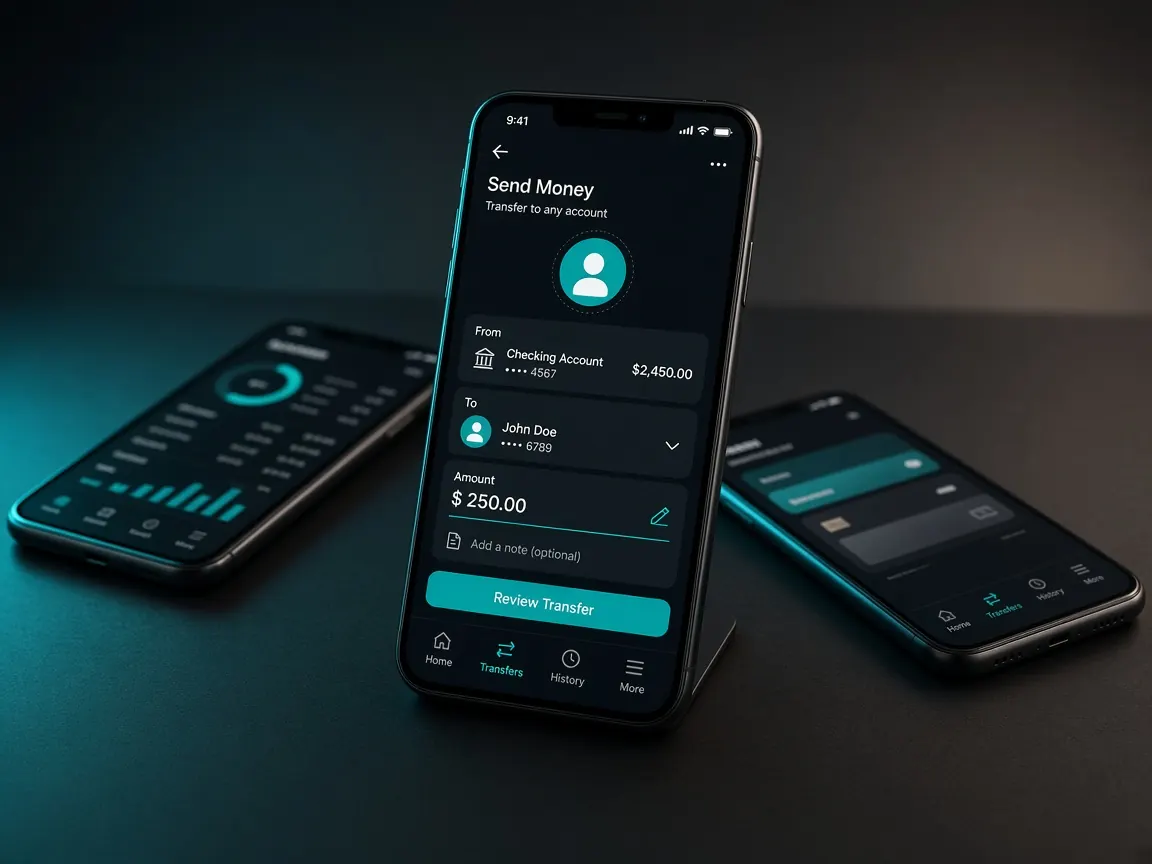
It's normal for your hands to shake a little the first time you deposit money into an online lobby. Did it go to the wrong number? How will I know the money arrived? In this lesson we slowly explain every part of the cashier screen and what you do on the mobile wallet side. This is an unofficial guide site. No money is taken here; all transactions happen only in the official lobby's cashier.
What exactly is the cashier?
The part of the lobby where money comes in and goes out is called the cashier. You may see it as a "Deposit", "Wallet" or "Recharge" button. The cashier has two sides: deposit and withdraw. On this page we mainly look at depositing; there is a separate withdrawal lesson for taking money out.
Get ready before you deposit
- A bKash, Nagad or Rocket account in your own name, with enough balance.
- Make sure you are comfortable using the wallet app or dial code.
- Decide beforehand how much you will spend today. The smart move is to test the whole process once with a small amount the first time.
How to make your first deposit, step by step
- Log in to the lobby. Then tap the "Deposit" or "Cashier" button at the top.
- Choose a method. Pick bKash, Nagad or Rocket from whatever the cashier shows as active right now. If one looks grey or disabled, it's not available at the moment.
- Enter the amount. If the cashier shows a minimum and maximum limit, stay within them. We don't give any numbers here, because limits change over time.
- Choose a bonus (if offered). A box to pick an offer may appear while you deposit. If you don't understand the terms, don't select it. Read the bonus lesson first.
- Follow the cashier's instructions. Send money only to the number or method shown on the screen. Never to a number that comes through chat, Facebook or someone's private message.
- Send the money from your wallet. When you're done, your wallet will give you a transaction ID (TrxID), by SMS or in the app's transaction history.
- Enter the transaction ID. If the cashier asks for it, type the ID correctly and submit. Check capital and small letters and numbers carefully.
- Check the status. The request will appear in the lobby's "Transaction history" section. If it's successful, the money will be added to your balance.
Separate detailed lessons for each wallet: bKash · Nagad · Rocket.
Can't find your transaction ID?
Beginners often get stuck here. After you send money, your wallet usually sends a confirmation SMS containing a code of mixed letters and numbers. That is the transaction ID. If you don't get the SMS, open the wallet app and tap the latest transaction in the transaction history or "Statement" section; the ID will be shown there. Copying the ID and pasting it into the cashier box is safest, because typing by hand can get one letter wrong.
Keep a record of every transaction
Build one habit from day one: write down the date, amount, method and transaction ID of every deposit in your phone's notes, along with a screenshot of the wallet SMS. If there's a problem, this is your proof. And at the end of the month, this list shows you whether you stayed within the limit you set for yourself.
I sent the money, but it's not in my balance
- First check the status in the transaction history. If it's pending, wait a while.
- Check that you typed the transaction ID correctly.
- Don't make a new request with the same receipt. That makes things more complicated.
- In live chat, give the transaction ID, amount, time and a screenshot of the wallet SMS. How to explain it clearly is in the support lesson.
When you write to support, be polite and brief, and give all the details in one message. Writing the same thing again and again doesn't bring a faster answer; it only causes confusion.
The biggest beginner mistakes
- Sending money to the personal number of an "agent" from a Facebook page or Telegram. The lobby has no record of that money. Read the agent warning.
- Using a wallet in someone else's name. This can cause problems later with withdrawal and KYC checks.
- Treating the limits on a promo banner as final. What the cashier says is what's real.
- Telling anyone your wallet PIN. No support person or agent ever needs to know your PIN.
Fees, minimum and maximum limits, and how long money takes to arrive all depend on the method, offer and verification. What the live cashier shows is final. This site is not official. 18+ only. Only deposit money you can afford to lose.